7 Best PSU for Computer Builds in 2026
A dependable power supply is easy to overlook until a demanding game, rendering session, or upgrade exposes its limits. The right model must deliver stable power, fit the case, and provide connectors that match the components. For a psu computer build, wattage is only one part of the decision. Check your processor and graphics card requirements, leave sensible headroom, and confirm the cable layout before buying.
This guide to the 7 Best PSU for Computer Builds in 2026 compares options by capacity, efficiency, noise, protection features, warranty, and value. It also considers practical details: a long graphics card cable may be awkward in a compact case, while a fully modular design can simplify cable management. Details matter. Efficiency labels can help compare power use, but they do not prove overall build quality. Look for clear specifications and credible independent testing where available. Compatibility can change between revisions, so verify the exact model and included connectors with the manufacturer before purchase. Not every build. No single unit suits every budget, workload, or upgrade plan, and estimated power needs are never perfectly precise. The recommendations aim to make trade-offs easier to judge, not to replace checking your own parts list. A little extra research now can prevent a noisy, cramped, or underpowered build later.
How a Power Supply Unit Supports a Computer Build
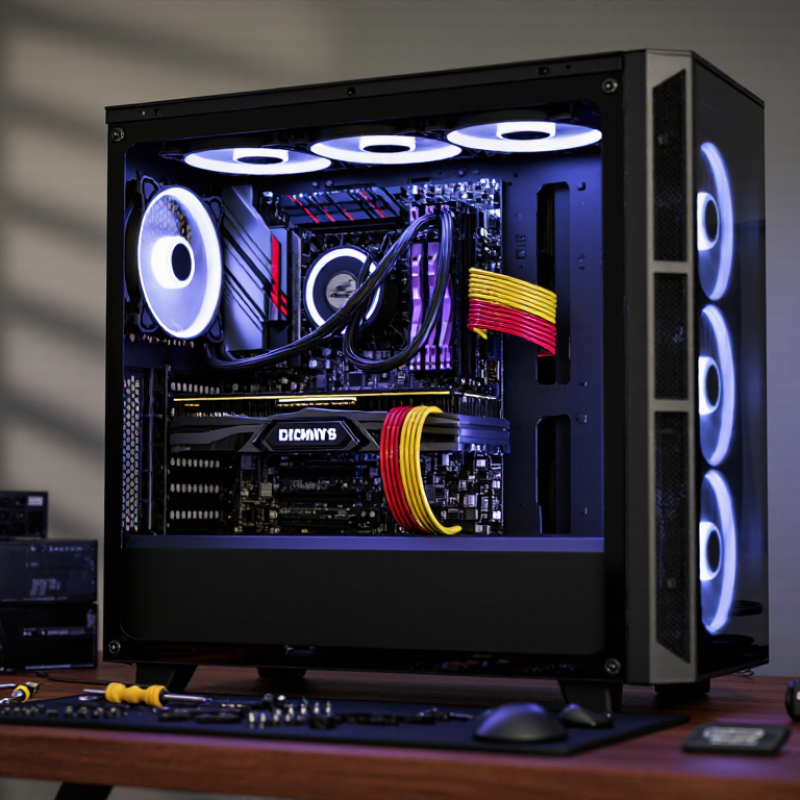
A power supply unit converts wall power into regulated DC power for the motherboard, processor, graphics card, storage drives, and fans. It also distributes power across the system while helping protect components from electrical faults. If its capacity is too low, a demanding game or rendering task may trigger crashes or sudden shutdowns. It matters.
The ATX 3.0 Multi-Rail Desktop Platform Power Supply Design Guide accounts for brief power excursions reaching 200% of rated output. That figure shows why a wattage label alone cannot tell the whole story: a PSU must handle short peaks as well as sustained demand. A well-matched unit can also reduce wasted energy and excess heat during ordinary workloads. A calculator is a starting point, not a promise; real power draw varies with the parts and workload. I would check component requirements, leave practical headroom, and verify cable connections before powering on. That last check is easy to rush.
How to Choose the Right PSU for a 2026 PC
Choosing a power supply starts with your actual components, not a wattage guess. Add the processor and graphics card’s estimated demands, then account for the motherboard, drives, fans, and USB devices. Check the graphics card manufacturer’s recommended capacity, but treat it as a starting point, not a verdict. Measured system demand and sensible headroom matter more than an oversized number on a box.
Leave some room.
A quality 650–850-watt unit may suit many builds, though demanding processors and graphics cards can require more. Prioritize efficiency certification, over-current and over-temperature protection, and clear warranty terms. Check every connector before buying, especially the graphics card’s required plug and the motherboard’s CPU power lead. A modular cable layout can help in a cramped case, but a long unit may block drive cages.
Measure twice.
Wattage estimates are imperfect, and future upgrades can change the calculation. One overlooked detail is cable reach: a connector that barely reaches can make an otherwise tidy build frustrating. Check your case dimensions and cable paths before choosing.
Seven Best PSUs for Different Computer Build Needs
Seven computer builds rarely need the same power supply. A compact office PC benefits from a short unit that leaves room for cables. A quiet living-room build needs a fan profile that stays calm at light loads. Gaming systems may need more capacity for brief power spikes, while workstations can benefit from stable output during long rendering sessions. Budget builds should prioritize dependable protections over flashy extras. Upgrade-ready systems need suitable connectors and spare capacity. Small details matter.
Choose a unit by checking the actual parts list, not by guessing from the graphics card alone. Add the processor, graphics card, storage, and cooling needs, then leave reasonable headroom. Check the case dimensions and cable reach before ordering; tight bends near a side panel can be frustrating. Efficiency ratings can help compare energy use, but they do not guarantee quiet operation or build quality. A common mistake is buying far more capacity than a system can use. I would reconsider that choice if the extra cost could improve another component.
Tips: Measure twice. Confirm connector types, unit length, and warranty terms. Keep the power supply’s intake clear of carpet and dust, and avoid forcing a cable into place. If your component estimates are uncertain, consult their official specifications before choosing.
How to Compare PSU Efficiency, Connectors, and Protection
A PSU’s efficiency rating matters most at the loads your computer actually uses. The 80 PLUS certification table for 115-volt supplies sets Gold-level thresholds at 87% efficiency at 20% and 100% load, and 90% at 50%. That middle figure is useful, but it does not tell you how quietly a unit runs or how it behaves under heat. Check independent test results for voltage regulation, ripple, and fan noise too. A tidy label is not a full test report.
Connectors deserve a close look before you buy. The ATX 3.1 power-supply design guide covers updated high-power connector requirements; verify that the cable matches your graphics card and is fully seated. Leave room for a gentle bend near the plug. Small details matter. A side panel pressing against a stiff cable can cause trouble, even when the connector count looks right.
Protection features should include over-current, over-voltage, under-voltage, short-circuit, over-temperature, and over-power protection. Look for measured shutdown behavior in a reputable laboratory report, not just a list on a product page. A spreadsheet can make comparisons seem cleaner than they are: test conditions vary, and I would not treat one efficiency number as a verdict.
7 Best PSU for Computer Builds in 2026 - How to Compare PSU Efficiency, Connectors, and Protection
Brand-neutral comparison of seven power-supply capacity profiles. These are selection guidelines, not claims about specific tested products.
| Build profile | Rated capacity | Typical use | Efficiency target | Useful connector configuration | Protection features to verify | Comparison note |
|---|---|---|---|---|---|---|
| 1. Entry-level desktop | 550 W | Integrated graphics or a modest-power graphics card; roughly 250–400 W of sustained system load. | 80 PLUS Bronze or better; Bronze efficiency is at least 85% at 50% load under the 115 V test rating. | At least one 4+4-pin EPS CPU connector and two PCIe 6+2-pin connectors if the chosen graphics card requires them. | Over-voltage (OVP), under-voltage (UVP), over-power (OPP), short-circuit (SCP), and over-temperature (OTP) protection. | A practical lower-capacity option when the component maker’s power guidance and the planned upgrade path both fit. |
| 2. Mainstream gaming | 650 W | Midrange gaming system; roughly 300–475 W of sustained system load. | 80 PLUS Gold target; Gold efficiency is at least 90% at 50% load under the 115 V test rating. | One 4+4-pin EPS connector and two PCIe 6+2-pin connectors; check the graphics card’s exact socket requirements. | Verify OVP, UVP, OPP, SCP, and OTP in the unit’s specifications. | Gold certification describes efficiency at specified test loads, not overall build quality or power capacity. |
| 3. High-value gaming | 750 W | Higher-performing single-GPU system; roughly 350–550 W of sustained system load. | 80 PLUS Gold target; at least 90% efficiency at 50% load under the 115 V test rating. | One or two 4+4-pin EPS connectors, plus GPU cabling that matches the card: PCIe 6+2-pin or native 12V-2x6 where needed. | Verify OVP, UVP, OPP, SCP, and OTP; check that the protection list applies to the exact model. | Allow additional capacity for transient demand and future upgrades rather than sizing only to average gaming draw. |
| 4. Upper-tier gaming | 850 W | Powerful single-GPU system or a gaming and creator workstation; roughly 400–650 W of sustained system load. | 80 PLUS Gold target; at least 90% efficiency at 50% load under the 115 V test rating. | Two 4+4-pin EPS connectors can help with compatible boards; choose native 12V-2x6 or the required PCIe cabling for the GPU. | Look for OVP, UVP, OPP, SCP, and OTP, along with clear documentation for cable and connector limits. | For a 12V-2x6 graphics connection, use the PSU’s compatible cable and follow the GPU and PSU installation instructions. |
| 5. Enthusiast single-GPU build | 1,000 W | High-power graphics card with a high-performance processor; roughly 450–750 W of sustained system load. | 80 PLUS Platinum target; at least 92% efficiency at 50% load under the 115 V test rating. | Two EPS connectors and the GPU’s specified native 12V-2x6 or PCIe connectors; confirm the supplied cable configuration. | Verify OVP, UVP, OPP, SCP, and OTP. Review independent testing for protection behavior and voltage regulation. | Platinum efficiency can reduce conversion losses, but actual savings depend on load, electricity rates, and usage hours. |
| 6. High-end workstation | 1,200 W | High-end workstation, compute system, or a build with substantial component upgrades; roughly 550–900 W of sustained system load. | 80 PLUS Platinum target; at least 92% efficiency at 50% load under the 115 V test rating. | Two EPS connectors and enough independently specified GPU power connections for the intended configuration; check each cable’s rated use. | Verify OVP, UVP, OPP, SCP, and OTP, plus documented limits for each output and connector. | Check the case’s PSU length clearance and the circuit’s available capacity before choosing a high-wattage unit. |
| 7. Extreme multi-device build | 1,600 W | Specialized high-load workstation or multi-GPU configuration, subject to motherboard, GPU, and local power requirements. | 80 PLUS Titanium target; at least 94% efficiency at 50% load under the 115 V test rating. | Multiple EPS and GPU power connections as explicitly supported by the PSU; verify the permitted connector combinations and cable ratings. | Verify OVP, UVP, OPP, SCP, and OTP, and review independent testing for high-load protection and thermal performance. | Confirm that the wall outlet and circuit can support the expected input demand; a high rating alone does not guarantee compatibility. |
Efficiency figures shown are 80 PLUS minimums at 50% load for internal, non-redundant supplies tested at 115 V. Actual efficiency varies with load and input voltage. Connector availability, protection features, and compatibility vary by individual PSU; verify the exact unit’s specifications before purchase.
How to Check PSU Compatibility Before Installation
Before installation, check the power supply’s size against the case manual. An ATX unit may not fit a compact SFX-only enclosure. Measure the available length, including cable-bend space near the drive cage. Then confirm the motherboard uses a 24-pin main connector and the CPU needs the supplied EPS connector. Measure twice.
Next, compare the graphics card’s power sockets with the supply’s cables. Check the card maker’s recommended wattage, then add the CPU and other components’ estimated power use. Leave reasonable headroom; peak demand can briefly exceed typical gaming draw. The ATX 3.0 Multi Rail Desktop Platform Power Supply Design Guide specifies power excursions up to 200% of rated output for 100 microseconds. That figure explains why a simple wattage total may miss short spikes.
Inspect cable routing before closing the case. Use the supply’s own cables, and never force a plug that feels misaligned. For newer high-power GPU connectors, keep the plug fully seated and avoid a sharp bend near its housing. I still recheck connector clearance after the side panel is on; a cable can shift more than expected. Compatibility is not just wattage. It is fit, connectors, and safe routing.
Related Posts
-
2026 Top Computer Power Supply Types for Global Buyers
-

China Top Computer PSU Suppliers for Global Buyers?
-
What Is the Best PC Power Supply in 2026?
-
What Is a PC Power Supply and What Type Do You Need?
-
What Is the Best ATX Power Supply from China?
-
What is a PSU in a Computer and Why is it Important?

At Premium PSU, we are specialists in designing and manufacturing power conversion systems for the industrial market. Our product range includes high reliability power supplies from 50W to 72kW.
PREMIUM PSU
C/ Dolors Aleu, 19-21, 2nd Floor
08908 – Hospitalet de Llobregat
Barcelona-SPAIN
t.+34 93 223 26 85